
Tesla browser connection guide
How a Tesla Android Box connects through the built-in browser
ApplePie Tesla Android Box connects through Wi-Fi and the Tesla built-in browser. It does not require factory CarPlay. The browser must be usable in Drive (D) after the vehicle passes its internet connectivity check. Confirm the vehicle software and region before ordering.
Check the Tesla browser first
Vehicles without a usable built-in browser are not supported. The browser must remain usable in Drive (D), and the vehicle must first pass its Wi-Fi internet connectivity check. The box can satisfy the check through a real internet connection, such as a SIM or phone hotspot, or through its firmware compatibility responses. Browser behavior can differ by vehicle software and region; a model name or year alone is not a compatibility guarantee.
Connect to the box's Wi-Fi
Power the box from a stable 5V/2A or 5V/3A source. After startup, open the Tesla Wi-Fi settings and connect to the box network beginning with TslBoxAP_. The device-specific suffix varies. In the Wi-Fi details, enable Keep Connected While Driving so the connection remains available.
- Use the connection credentials supplied with the box.
- Complete the first setup while safely parked.
Open the Android interface in the browser
Open the Tesla browser and enter http://www.tslbox.link while connected to the box Wi-Fi. Save the address as a browser favorite for later use. The box interface appears inside the browser; it is not a factory CarPlay screen or a replacement for the vehicle's own software.
If the first connection does not open
The Tesla head unit checks whether the Wi-Fi network has internet access before opening its browser. The box can respond using its built-in compatibility address list. If that check fails, give the box a real internet connection through an active compatible SIM or the phone-hotspot method described in the connection guide. Regional connectivity checks can vary; NAVLYNX support may ask for a system log after a successful connection so a future firmware update can improve compatibility.
Choose the audio path that fits your setup
Wi-Fi audio is simpler to set up and lets a phone stay connected directly to Tesla Bluetooth, but box apps cannot use the vehicle microphone or steering-wheel track controls in this mode. Bluetooth audio adds those controls and microphone input for supported box apps, while using the Tesla Bluetooth connection for the box.
Know what happens in Reverse
The Tesla system closes the browser when Reverse is selected so the vehicle camera can take priority. Reopen the browser after reversing. Use media and other screen interactions only when safe and permitted. NAVLYNX is not affiliated with Tesla, Inc.
Verified product profiles
Models that match this selection condition.
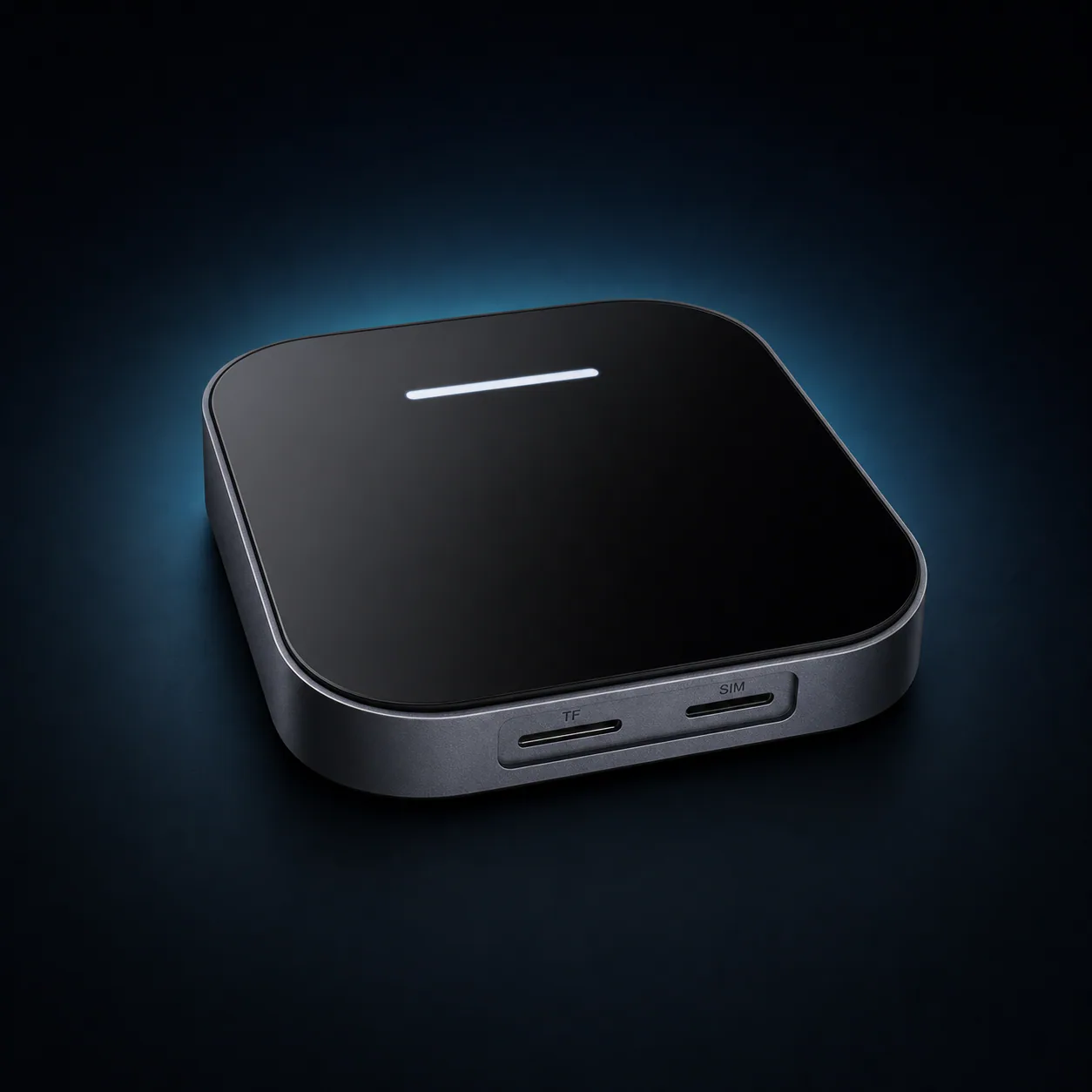 ApplePie Tesla Android Box
Need a model recommendation?
Tell us about your Tesla.
Include the model, model year, country, software version, and whether the built-in browser can access the internet in Drive mode. Contact sales@lynxtech-vision.com.
Reviewed and updated September 29, 2026.